# Compare infrastructure configuration changes
Copy as Markdown[Open in ChatGPT](https://chatgpt.com/?q=Read%20https%3A%2F%2Fdocs-docusaurus.kinsta.page%2Fuser-guides%2Finfrastructure%2Finfrastructure-explorer%2Fcompare-configuration.md%20and%20help%20me%20with%20my%20question%20about%20this%20Coralogix%20documentation%20page.)[Open in Claude](https://claude.ai/new?q=Read%20https%3A%2F%2Fdocs-docusaurus.kinsta.page%2Fuser-guides%2Finfrastructure%2Finfrastructure-explorer%2Fcompare-configuration.md%20and%20help%20me%20with%20my%20question%20about%20this%20Coralogix%20documentation%20page.)
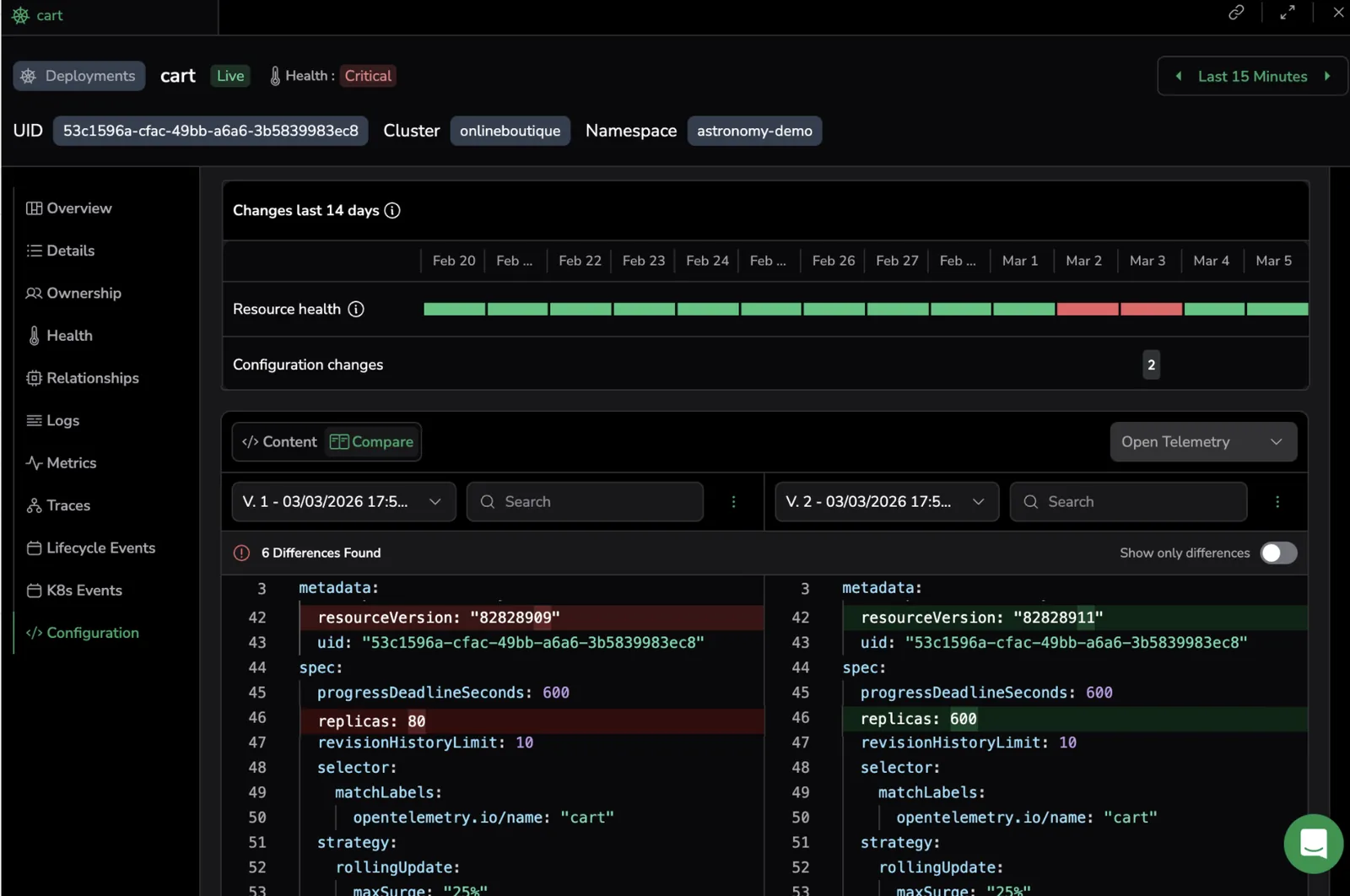
Identify exactly what changed in your infrastructure and understand how it affected resource health. With the Configuration Compare view in **Infrastructure Explorer**, review configuration versions side by side and correlate changes with health status over time.
Use this feature to reduce investigation time and focus on changes that impact behavior.
[](https://docs-docusaurus.kinsta.page/assets/images/compare-config-4ecd6f8e3f3b06a31cca7d8d155188eb.webp)
## Why this matters[](#why-this-matters "Direct link to Why this matters")
Configuration changes are a common cause of production incidents. Identifying the exact change that triggered a failure can be time-consuming—especially when resources emit frequent system updates.
The Configuration Compare view helps you:
* See exactly what changed between configuration versions
* Understand when the change occurred
* Determine whether the change coincided with health degradation
* Ignore system-generated updates that do not affect resource behavior
Instead of manually scanning large configuration files, immediately connect configuration updates to system behavior.
## Meaningful updates vs keep-alive events[](#meaningful-updates-vs-keep-alive-events "Direct link to Meaningful updates vs keep-alive events")
Infrastructure resources generate frequent update events. Not all updates represent real configuration drift.
To reduce noise and keep version history actionable, **Infrastructure Explorer** distinguishes between meaningful updates and keep-alive events.
### Meaningful updates[](#meaningful-updates "Direct link to Meaningful updates")
Meaningful updates change how the workload runs, behaves, scales, or executes.
These include changes to:
* Resource specification fields such as `spec`
* Metadata fields that affect behavior, such as `labels` and `annotations`
Only meaningful updates generate new configuration versions and appear in the version selector.
### Keep-alive events[](#keep-alive-events "Direct link to Keep-alive events")
Keep-alive events reflect routine system or status updates that do not affect functional behavior. These include changes to system-managed fields such as:
* `ownerReferences`
* `managedFields`
* `resourceVersion`
* `creationTimestamp`
* `uid`
* `deletionTimestamp`
* `deletionGracePeriodSeconds`
Keep-alive events do not create new configuration versions but appear in lifecycle activity for visibility. This approach ensures configuration history reflects only meaningful behavioral changes.
Example: Meaningful update vs keep-alive update
**Create (16:00)**
A resource is first detected and registered.
* The version selector shows **Current (16:00)** and **V1 (16:00)**
* Lifecycle activity shows **Create (16:00)**
**Meaningful update (16:05)**
A configuration field changes:
```
metadata.labels.foo: null → "bar"
```
This update:
* Creates a new configuration version **V2 (16:05)**
* Appears in the version selector
* Displays differences when comparing **V1** and **V2**
* Shows **Update (16:05)** in lifecycle activity
**Keep-alive update (16:10)**
A system-managed field changes:
```
metadata.resourceVersion: "123" → "124"
```
This update:
* Does not create a new configuration version
* Does not appear in the version selector
* Appears as a keep-alive lifecycle event
The version history remains focused on meaningful configuration changes.
## Compare configuration versions[](#compare-configuration-versions "Direct link to Compare configuration versions")
Review two configuration versions side by side to see exactly what changed. By default, **Infrastructure Explorer** compares:
* The current configuration
* The most recent previous meaningful version
The comparison view highlights:
* Added fields
* Modified values
* Removed configuration entries
Enable **Show only differences** to focus exclusively on changed sections.
### Version retention[](#version-retention "Direct link to Version retention")
* Versions are retained for 14 days
* Only versions generated from meaningful configuration changes appear in the version selector
* The current configuration is always available
## Correlate configuration changes with health[](#correlate-configuration-changes-with-health "Direct link to Correlate configuration changes with health")
The configuration timeline aligns version changes with resource health. Resource health is derived from attached health policies.
### Health states[](#health-states "Direct link to Health states")
**Healthy:** All enabled health policies report a healthy state
**Critical:** At least one enabled health policy reports a critical condition
**Unmonitored:** No health policies actively monitor the resource
If a resource enters a **Critical** state at any time during a day, that day appears as critical in the timeline. This helps you identify instability even if the issue was temporary.
Aligning configuration changes with health helps you:
* Determine whether a configuration update preceded a health degradation
* Confirm that a deployment restored the resource to a healthy state
* Identify health issues that occurred without configuration changes
## Example investigation workflow[](#example-investigation-workflow "Direct link to Example investigation workflow")
Use configuration comparison and health context together to investigate unexpected behavior:
1. A resource enters a **Critical** state
2. Open the resource and go to **Configuration**
3. Compare the current configuration with the previous version
4. Review highlighted differences in `spec`, labels, limits, or other behavioral fields
5. Check the health timeline to determine whether the configuration change preceded the degradation
This workflow helps you quickly connect configuration updates to system behavior and identify likely root causes without manually reviewing logs or full configuration manifests.
## Next steps[](#next-steps "Direct link to Next steps")
Track and optimize your infrastructure telemetry ingestion by reviewing [Data usage](https://docs-docusaurus.kinsta.page/user-guides/infrastructure/infrastructure-explorer/infra-data-use/.md).
## Related resources[](#related-resources "Direct link to Related resources")
* [Explore your infrastructure](https://docs-docusaurus.kinsta.page/user-guides/infrastructure/infrastructure-explorer/explore-infra/.md)
* [Ownership](https://docs-docusaurus.kinsta.page/user-guides/infrastructure/infrastructure-explorer/ownership/.md)
* [Health overview](https://docs-docusaurus.kinsta.page/user-guides/infrastructure/infrastructure-explorer/health-overview/.md)