No data state
Decide what an alert does when its query returns no results and the system cannot evaluate the condition. Configure no-data handling when you create or edit a metric or log alert.
No-data itself is not a directly notifiable state.
You receive notifications only when an alert transitions into a notifiable state, such as OK or alerting, based on the configured no-data behavior.
How no-data handling works
No-data handling describes how an alert behaves when its query returns no results and the system cannot evaluate the alert condition.
When you evaluate an alert:
- If the query returns data, the alert evaluates normally.
- If the query returns no data, the system applies the configured no-data behavior.
No-data handling affects alert evaluation and state transitions, not notification delivery. The selected behavior determines which state the alert enters when data is missing. Notifications follow from that resulting state.
The same no-data option apply across metric and log alerts. However, the UI might present these options in different places depending on the alert type and how the alert evaluates data.
Where to configure no-data handling
Configure no-data handling as part of an alert definition.
The alert’s Advanced settings contain the no-data options. These settings define how the alert behaves when data is missing, rather than how it evaluates thresholds or usual values.
No-data handling applies to alert types that rely on query results to determine their state, including:
- Metric alerts with threshold conditions
- Metric alerts that compare values against a usual or expected range
- Log alerts with threshold conditions
- Log alerts that evaluate logs against usual behavior
If an alert relies on query results for evaluation, it supports no-data handling.
Select a no-data behavior
When you configure an alert, select how it must behave when no data is available. Each option represents a different assumption about what missing data means for your system.
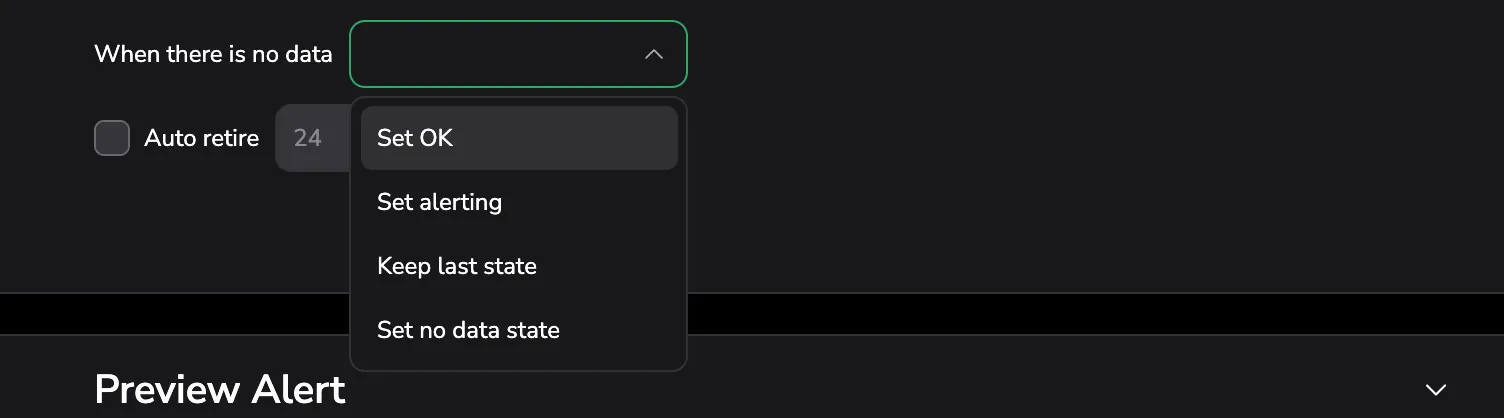
The following sections explain each option in detail, including when to use it and what happens after you select it.
- Set OK
- Set alerting
- Keep last state
- Set no data state
Select Set OK when you expect missing data and it does not indicate a problem.
This option suits workloads that are intentionally silent or emit data only under specific conditions.
Typical scenarios
- Batch jobs that emit metrics only while running
- Services that intentionally scale to zero
- Periodic tasks that do not produce continuous telemetry
Alert behavior
- When no data is available, the alert transitions to the OK state.
- The alert does not indicate an issue while data is missing.
Things to consider
- If telemetry stops unexpectedly, this option can hide real issues.
- Select this option only when you expect and understand periods with no data.
Select Set alerting when missing data likely signals a problem.
Typical scenarios
- Infrastructure metrics (CPU, memory, disk)
- Core services that must always be running
- Critical pipelines where missing data likely indicates a failure
Alert behavior
- When no data is available, the alert transitions to the alerting state.
- The system treats missing data the same as a breached alert condition.
Things to consider
- This option can generate alerts during telemetry outages.
- Select it when data availability matters as much as metric values.
Select Keep last state when short or intermittent gaps in data is common and not meaningful.
This option prevents alert state changes caused by brief interruptions in data ingestion.
Typical scenarios
- Temporary network issues
- Short ingestion delays
- Metrics scraped at irregular intervals
Alert behavior
- When no data is available, the alert remains in its previous state.
- The alert resumes normal evaluation when data returns.
Things to consider
- Long gaps does not change alert state.
- This option prioritizes stability over immediate visibility into missing data.
Select Set no data state when you want to track missing data as its own condition.
This option is ideal when missing data is neither OK nor alerting, but still important to observe and act on.
Typical scenarios
- Telemetry and platform monitoring
- Detecting broken exporters or agents
- Identifying misconfigured queries or missing labels after deployments
Alert behavior
- When no data is available, the alert enters a no data state.
- The no-data state is visible in the UI and alert timelines.
Things to consider
- This option provides the clearest visibility into data availability issues.
- It helps you distinguish between a system that is unhealthy and a system that is silent.
Important considerations
- Review no-data behavior whenever you change queries, labels, scaling behavior, or ingestion pipelines.
- Select Set OK only when you expect and accept silent periods.
- Use Set no data state to obtain the clearest visibility into data availability issues.
What happens when data returns
When data returns, the alert resumes normal evaluation:
- If you selected Set no data state, the alert exits the no-data condition.
- The system evaluates new data using the configured lookback and evaluation windows.
- The alert transitions to OK or alerting based on the new results.
You don’t need to take manual action.
Example timeline
- You evaluate the alert and it enters alerting.
- The query stops returning results; the alert follows your configured no-data behavior.
- Data resumes and the alert reevaluates.
- The alert moves to OK if the condition no longer applies, or stays alerting if it still applies.
How evaluation windows apply
When data returns, the system evaluates only new data using the configured lookback and evaluation windows. The system does not replay missing data.
This approach ensures alert decisions reflect current system behavior rather than historical gaps.
Avoiding alert flapping
Short data interruptions does not immediately trigger repeated state changes. Select Keep last state or Set no data state to reduce unnecessary transitions during brief interruptions.
Visibility of no-data states
When you select Set no data state, the alert enters a distinct no-data state that appears in alert timelines and status views.
This distinction helps you tell the difference between:
- Alerts that fire when conditions meet thresholds
- Alerts that the system cannot evaluate because data is missing
s alert evaluation and state transitions only. They do not automatically trigger notifications. The system sends notifications only when an alert transitions into a notifiable state according to your routing and notification configuration.
When to review no-data settings
Review no-data settings regularly to ensure they still match how your systems operate.
Revisit no-data settings when:
- You add, remove, or change labels in metric or log queries
- You change deployment or scaling behavior
- Alerts remain unexpectedly quiet
- Alert timelines show frequent transitions into and out of no-data states
Clear no-data configuration keeps alert behavior predictable, reduces confusion during incidents, and simplifies troubleshooting when data goes missing. Think of no-data handling as deciding how the alert evaluates missing data, not when the system sends notifications.
Related resources
Next steps
Eliminate unnecessary alerts during maintenance or off-hours with Suppression Rules.