OCI Audit logs
Overview
This integration guide focuses on connecting your Oracle Cloud Infrastructure (OCI) environment to Coralogix using OCI Notification Service. To complete this integration, you'll need to create a topic, set up a subscription, and configure a service connector to send audit logs to Coralogix.
The process involves three main steps: creating a topic in OCI Notification Service, setting up a subscription with a Coralogix webhook, and configuring a service connector to route audit logs to the notification service. Each step requires specific configuration parameters which are detailed in the sections below.
Prerequisites
- An OCI tenancy
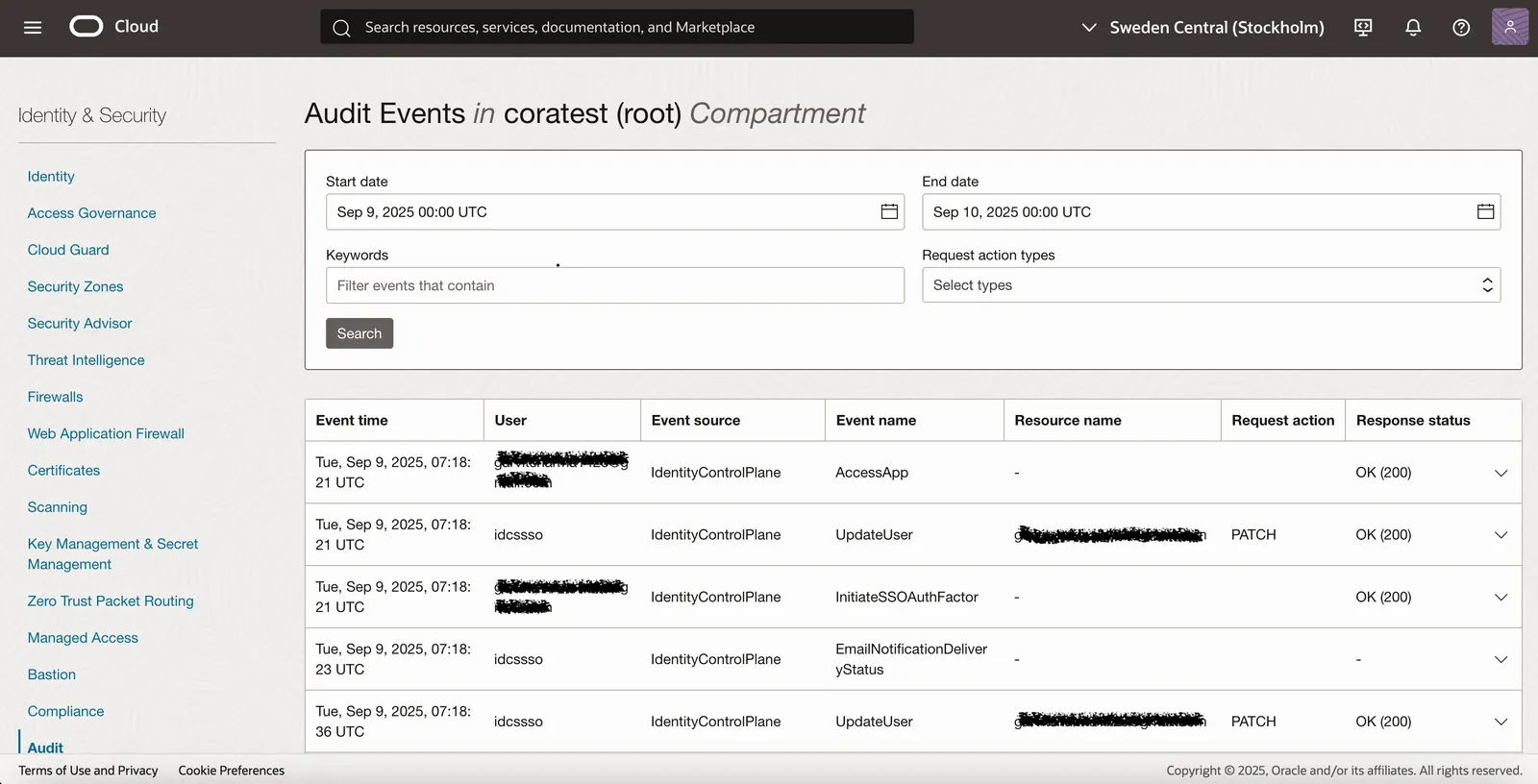
- Audit logging must be enabled in the Audit section under Identity & Security
Audit logging is generally enabled by default on all OCI tenancies. However, it's recommended to verify this by checking for events in the Audit Events section.
Installation instructions
Step 1: Create a Topic
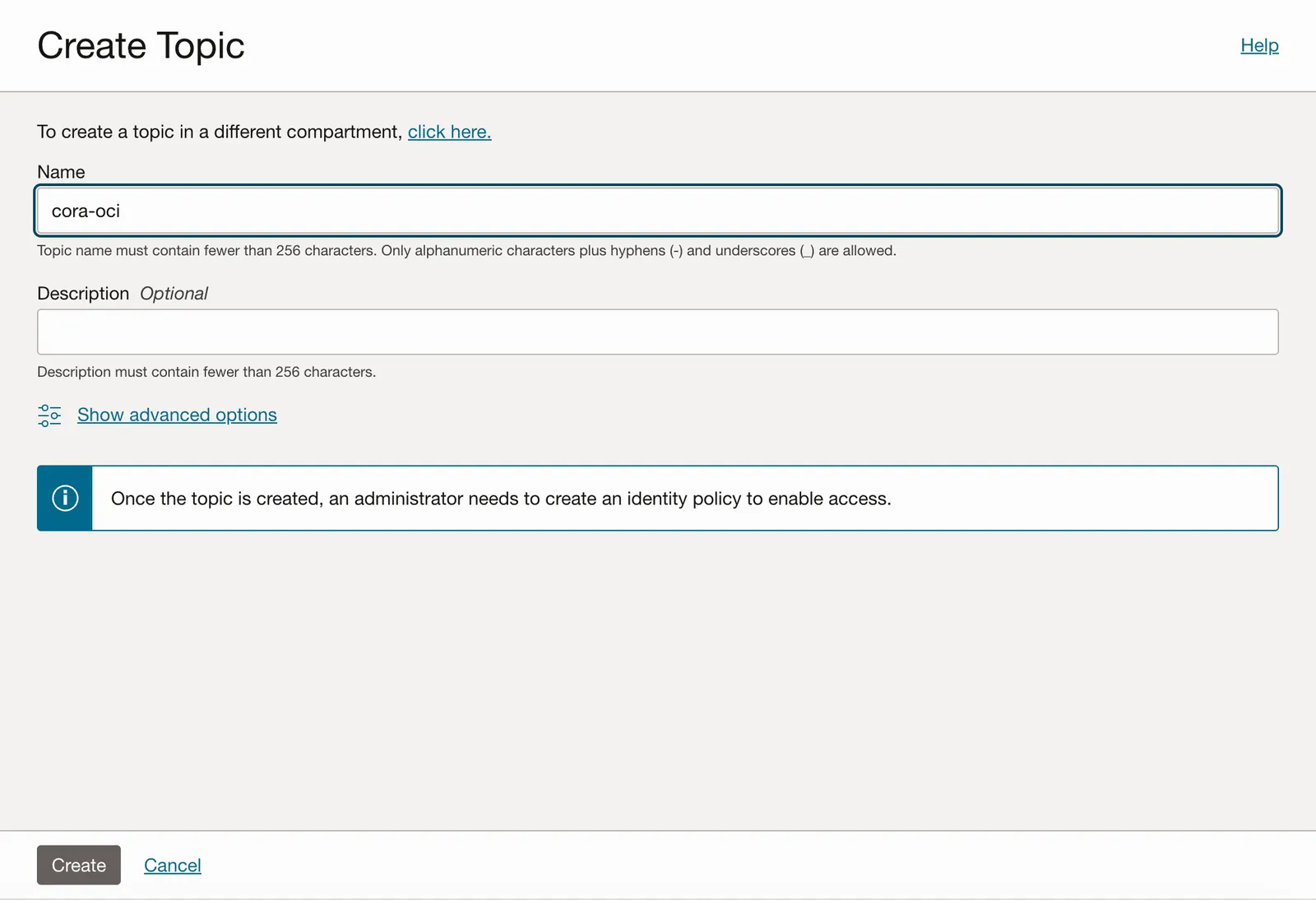
To send logs to Coralogix, you must first create a topic and subscribe to it to receive data. This is part of the OCI Notification Service.
Search for "topic" in the OCI search bar.
Step 2: Create a Subscription
Next, navigate to the topic and create a subscription so an endpoint can subscribe to it (similar to a Pub/Sub model).
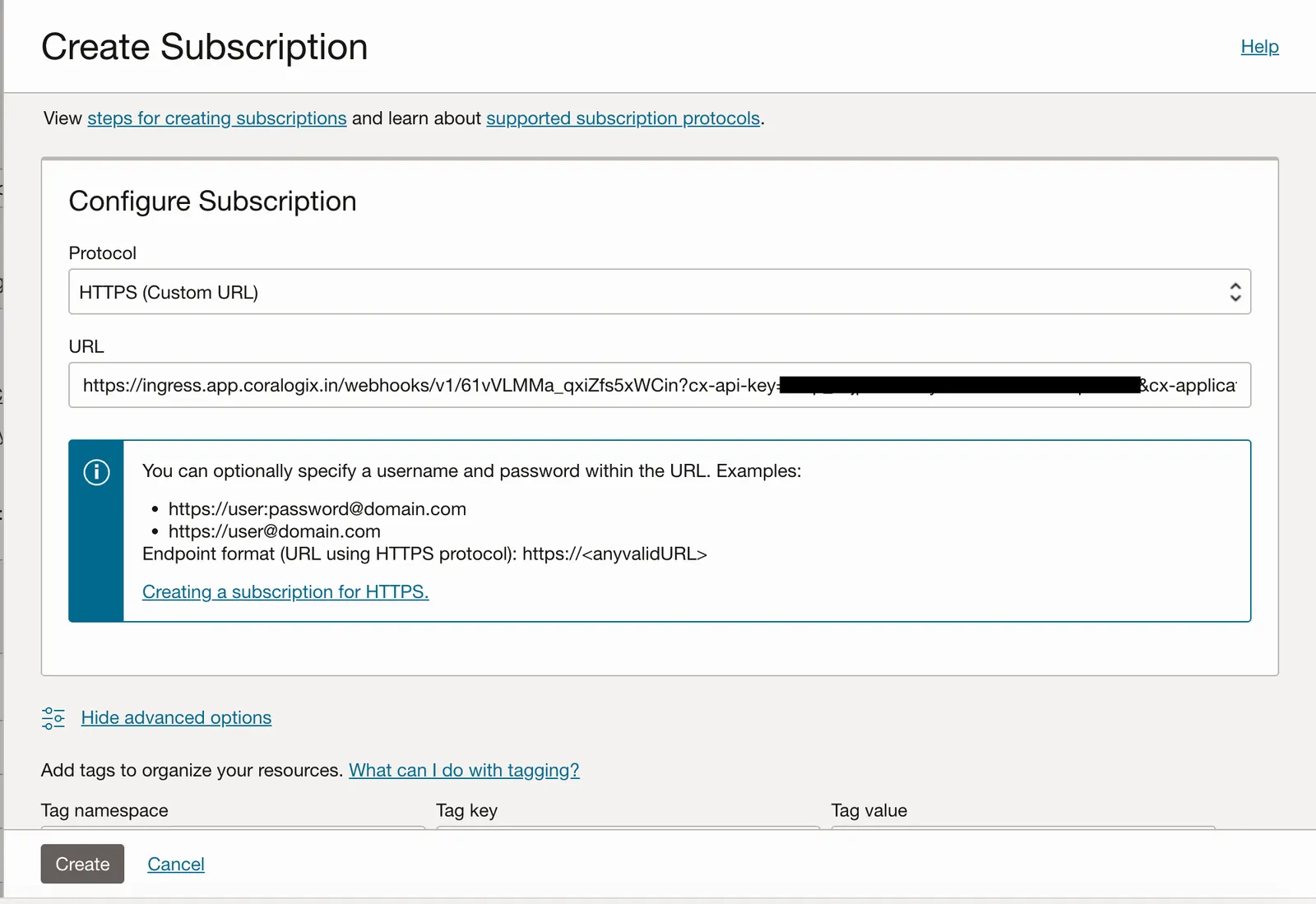
To create the webhook URL refer to our documentation on Generic Incoming Webhooks
After creating the subscription:
- Go to your Coralogix account and check the Logs section
- Select the appropriate app name and subsystem name
- You should see a single log entry with a URL
- Click on that URL to confirm the subscription

Step 3: Create a Service Connector
To enable communication between OCI services, create a service connector. Search for "connector" with the messaging tag in the search bar, then click Create Connector.
Required parameters
- Name - Choose a descriptive name for your connector
- Compartment - Select the appropriate compartment
- Source - Select "Logging" (since we're fetching logs from the default audit log group)
- Target - Select "Notifications"
- Log Group - For audit logs, use the default
_Auditlog group (alternatively, you can create a custom log group) - Topic - Select the topic created in Step 1
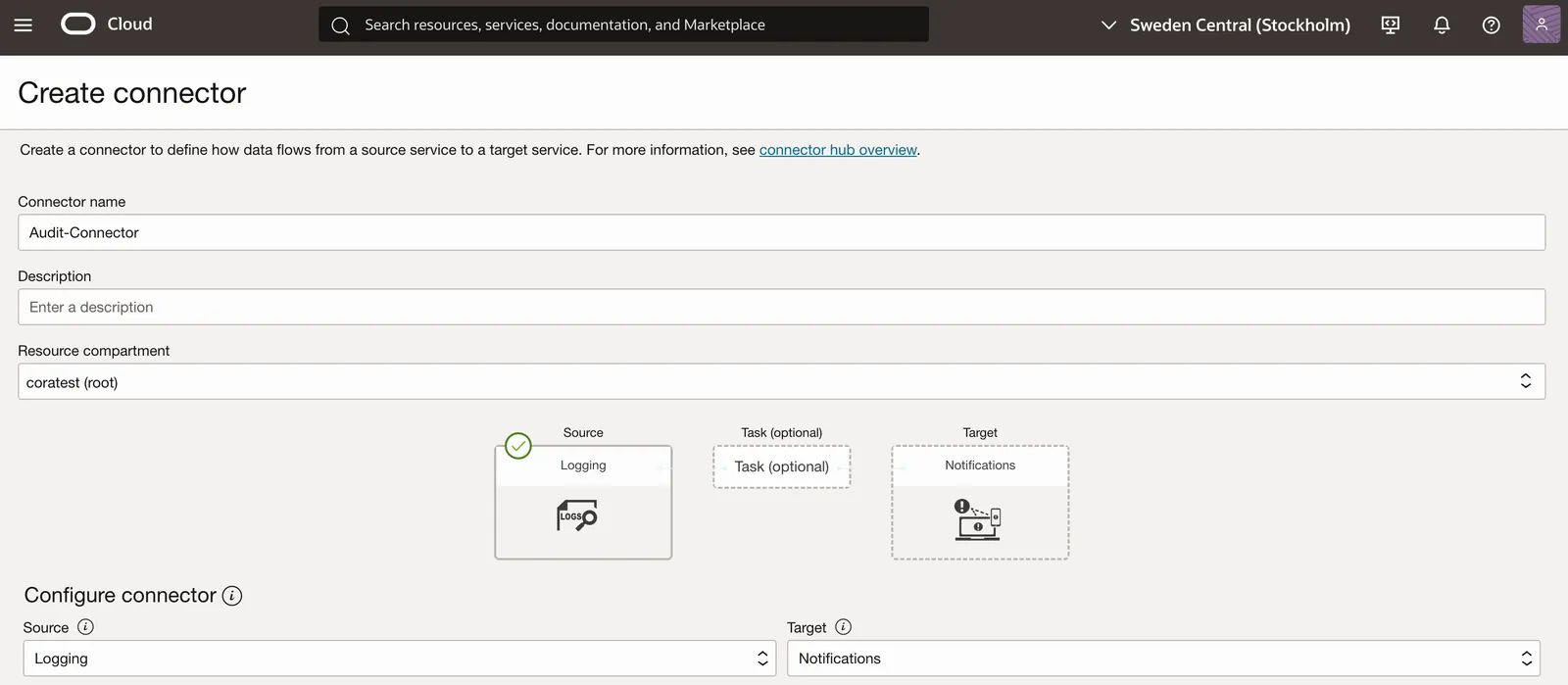
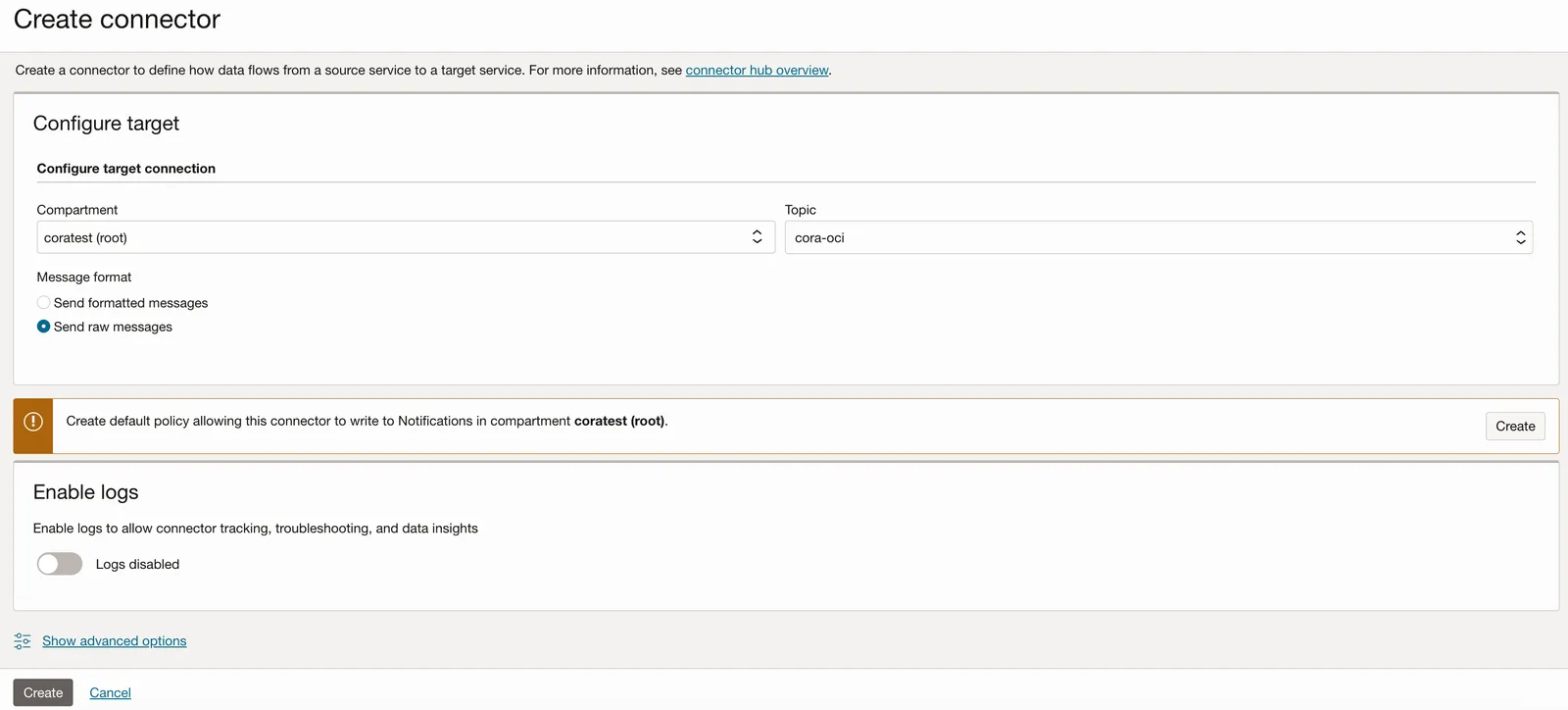
Make sure to check the "Create default policy" checkbox before clicking Create. Log ingestion typically takes 2-3 minutes to begin.